

 Refresh
3CX User Guide
¿Quieres ganar un trabajo como este?
Este cliente recibió 18 diseños de flyer de 5 diseñadores. Eligieron este diseño de flyer de Impressive Designs como el diseño ganador.
Únete gratis Encuentra trabajos de diseño
- Proyecto agrupado 1
-
 A$190
A$190
-
 18 diseños
-
 5 diseñadores
Resumen de Diseño de Flyer
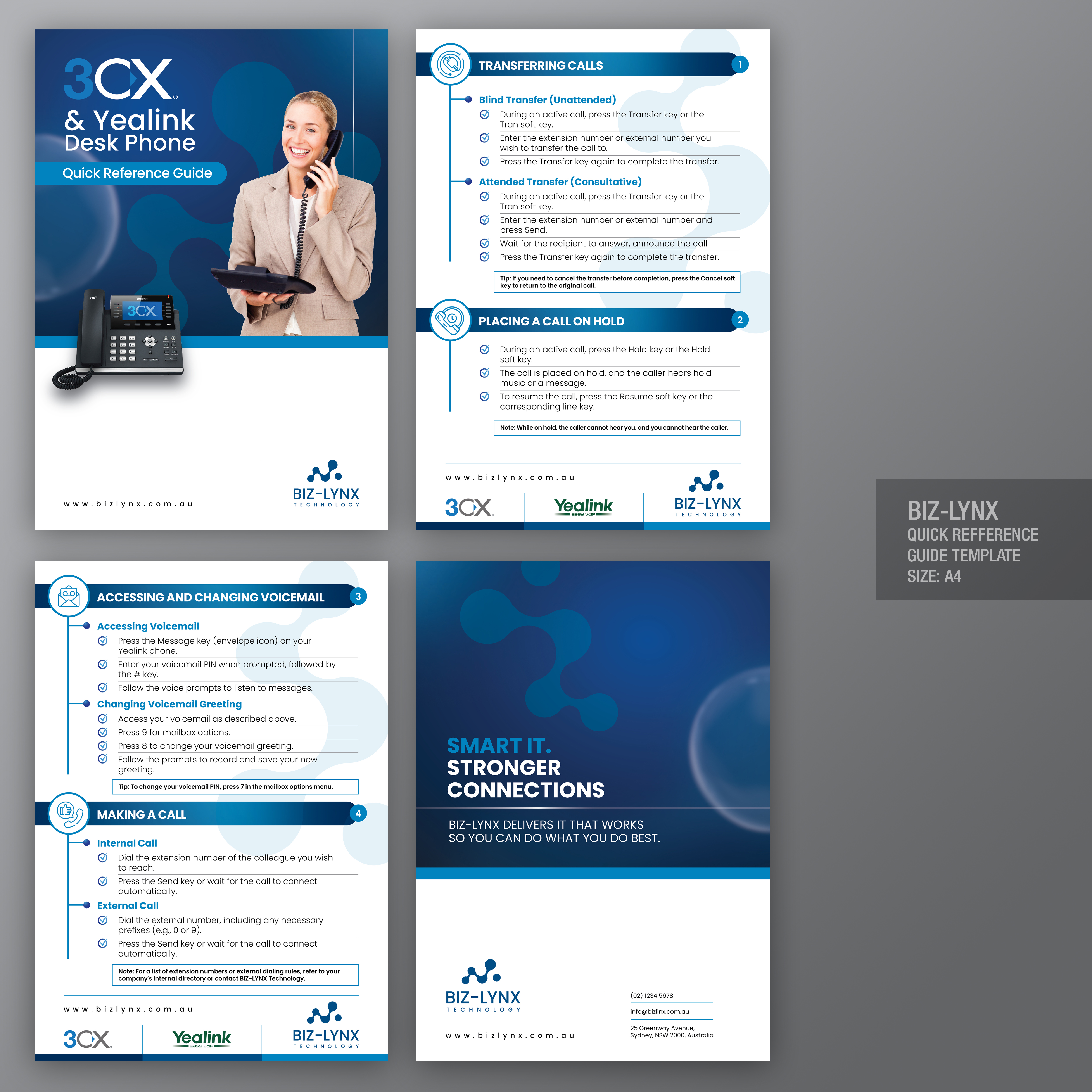
We would like a new brochure incorporating our style and fonts and colours for a simple 3cx quick reference guide in a template we can use for other user guides
Content would be like
📞 3CX & Yealink Desk Phone Quick Reference
🔄 1. Transferring Calls
Blind Transfer (Unattended)
During an active call, press the Transfer key or the Tran soft key.
Enter the extension number or external number you wish to transfer the call to.
Press the Transfer key again to complete the transfer.
Attended Transfer (Consultative)
During an active call, press the Transfer key or the Tran soft key.
Enter the extension number or external number and press Send.
Wait for the recipient to answer, announce the call.
Press the Transfer key again to complete the transfer.
📝 Tip: If you need to cancel the transfer before completion, press the Cancel soft key to return to the original call.
⏸️ 2. Placing a Call on Hold
During an active call, press the Hold key or the Hold soft key.
The call is placed on hold, and the caller hears hold music or a message.
To resume the call, press the Resume soft key or the corresponding line key.
🎵 Note: While on hold, the caller cannot hear you, and you cannot hear the caller.
📬 3. Accessing and Changing Voicemail
Accessing Voicemail
Press the Message key (envelope icon) on your Yealink phone.
Enter your voicemail PIN when prompted, followed by the # key.
Follow the voice prompts to listen to messages.
Changing Voicemail Greeting
Access your voicemail as described above.
Press 9 for mailbox options.
Press 8 to change your voicemail greeting.
Follow the prompts to record and save your new greeting.
🔐 Tip: To change your voicemail PIN, press 7 in the mailbox options menu.
📞 4. Making a Call
Internal Call
Dial the extension number of the colleague you wish to reach.
Press the Send key or wait for the call to connect automatically.
External Call
Dial the external number, including any necessary prefixes (e.g., 0 or 9).
Press the Send key or wait for the call to connect automatically.
Note: For a list of extension numbers or external dialing rules, refer to your company's internal directory or contact BIZ-LYNX Technology.
Archivos
Descargar todos los archivos - 84,6 MBPagos
Total
A$190
Fecha límite del proyecto
08 may. 2025 03:05:15 UTCUpgrades del proyecto
Proyecto(s) incluido(s)
- ofreciendo A$49 por el diseño de papelería al ganador
